🧭 Announce managers
Announce for Space managers
Who can do what #
| Who | Can |
|---|---|
| Space owner + Space admins | Send everything, including Urgent; edit, mark over and delete any announcement; Announce settings. |
Announce managers (role announce_manager) |
Send everything, including Urgent; edit, mark over and delete. |
| Other office staff (any Space role, e.g. reports staff) | Draft any announcement, even an Urgent one. A manager checks it and presses Publish. See the Staff guide. |
| The mayor (set in the settings; the Space owner when none is set) | Approves a Mayor Talk. See the Mayor guide. |
| Members | Read, Got it, follow the daily status. |
💡 Give the
announce_managerrole in Team & roles (a screen in Manage → Tools comes later).
The Announce tab #
Chips: Today · Warnings · History · Mayor Talk · Drafts. The kind icons (🏘 🏢 ⚠️ 📢) filter, 🔍 searches. In the tab menu: ? Help and ⚙️ Announce settings. + New announcement opens the composer. The Home card shows Not posted yet today with a button Add today's status when the daily status is missing.
The daily routine (under a minute) #
- In the Announce tab press + New announcement.
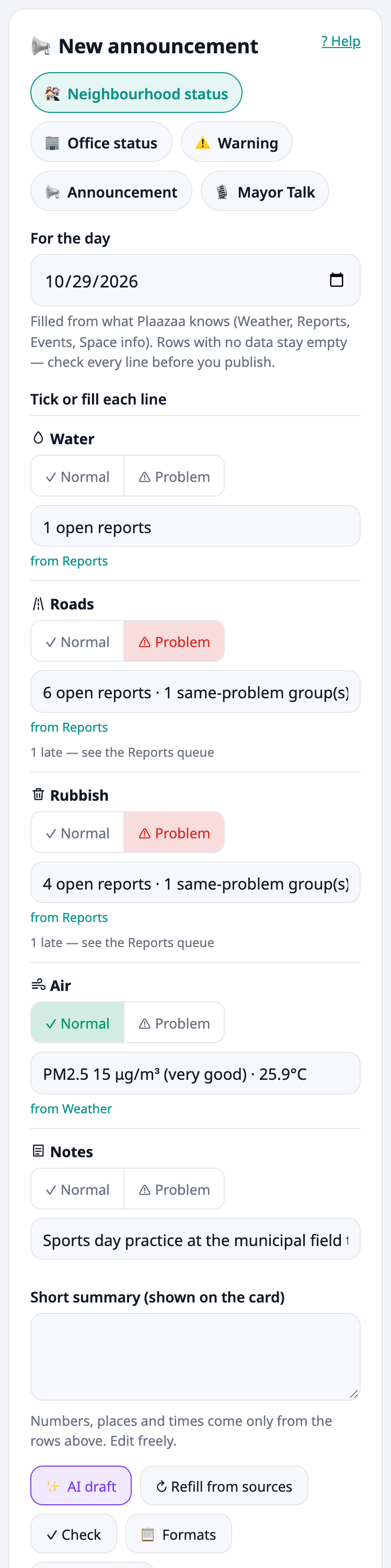
- Pick 🏘 Neighbourhood status. The lines (water, roads, rubbish, air, notes) are filled from what Plaazaa already knows, each with a small tag such as from Weather or from Reports. Lines with no data stay empty (or keep the last value, marked updated 27 Oct 16:40). Nothing is made up. Tick ✓ Normal or ⚠ Problem and add a detail only where something changed.
- Optional: press ✨ AI draft for a short friendly paragraph, then ✓ Check.
- Check every line, then press Publish.
- Only one status per kind per day. Publishing again for the same day replaces the first one (it is kept out of the lists).
- 🏢 Office status works the same way: opening hours, closed days, busy counters, notes.
- The daily status is not posted to the feed and has comments off. Followers (🔔) get a notification.
- For the day can be set up to 8 days back and 1 day ahead.
Auto-fill and ✨ AI draft #
Auto-fill (sources). Air = PM2.5 and temperature from Plaazaa Weather, plus any TMD warning (in Notes). Water / roads / rubbish = open reports of that kind and same-problem groups from Reports (the number of late reports is shown to you only, never published). Notes also list today's events. Office status takes the opening hours from Space info. ↻ Refill from sources fills the lines again.
✨ AI draft. Writes a short friendly paragraph from the rows you see. Every number, date and place must come from those rows: if the AI text contains a number that is not in the rows it is dropped and plain text from the rows is used instead. If AI is busy, off or at its daily limit, you get the plain text and nothing is blocked.
Public label. An AI-drafted announcement shows ✨ Drafted by AI · checked by

Check before send #
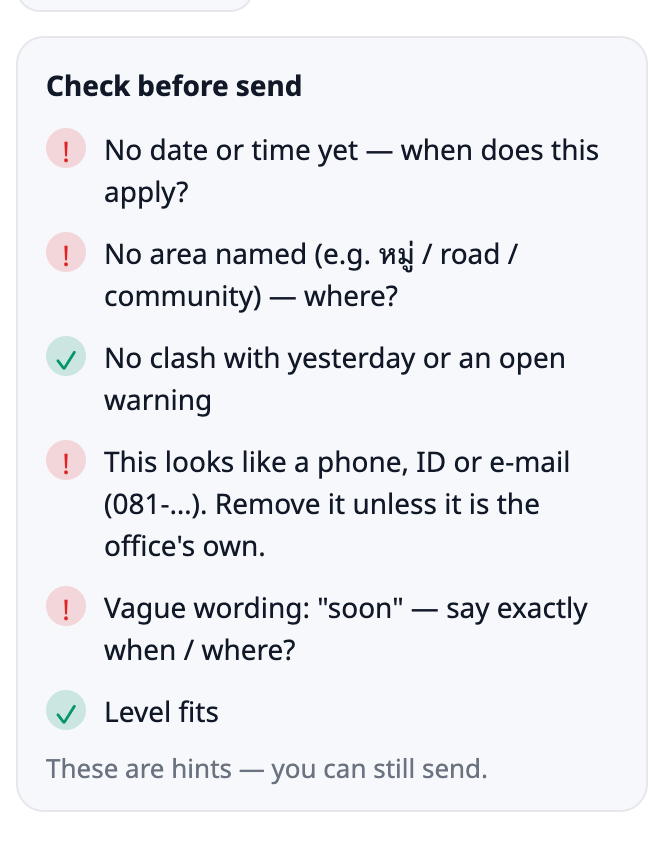
Press ✓ Check in the composer. It lists what to look at. It is a hint only, it never blocks you. A green tick = fine, a red ! = look at this.
| Flag | Example text it reacts to | What it says |
|---|---|---|
| No date or time | "The water will be off in Moo 3." | No date or time yet — when does this apply? |
| No area | "The water will be off tomorrow at 09:00." | No area named (e.g. หมู่ / road / community) — where? |
| Clash with yesterday | water ticked Normal today, but it was Problem yesterday | Water: yesterday this was a problem, today it says normal — sure? |
| Clash with an open warning | water ticked Normal while a "no tap water" warning is open | Water: marked normal, but a warning is open: "…" |
| Same warning again | a second "No tap water in Moo 3 · 09:00–15:00" | A similar warning is already open: "…" |
| Phone, ID or e-mail | "call 081-234-5678" (the office's own number is fine) | This looks like a phone, ID or e-mail (081-…). Remove it unless it is the office's own. |
| Vague wording | "soon", "TBD", "and so on" | Vague wording: "soon" — say exactly when / where? |
| Too short | a warning of only "Water off" | Very short — add what residents should know or do |
| Level too low | "Power cut on Soi 4 tomorrow 10:00" set to Info | Suggested level: Important (words like fire, evacuate, immediately suggest Urgent) |
| Level too high | Urgent set on a text with no urgent words | Suggested level: Important (no urgent wording found) |
| Weather or air (daily status only) | a TMD warning is active / air is unhealthy | TMD has an active warning / Air quality is unhealthy — consider a Warning announcement |
A red ! counts as flagged: it is what stops the 07:00 auto-publish. Level and air hints are only tips.
For a Mayor Talk the date and area flags are switched off.
Formats and languages #
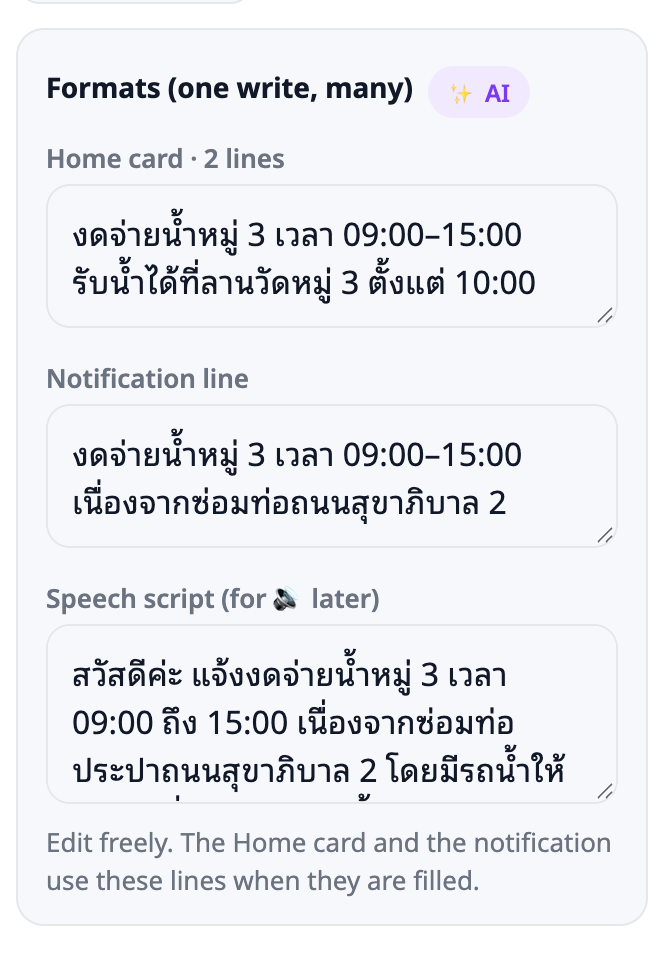
After you write once, press 📋 Formats to get three versions: a 2-line text for the Home card, a one-line notification and a speech script (for a spoken version later). Edit them. The Home card and the notification use these lines when they are filled.
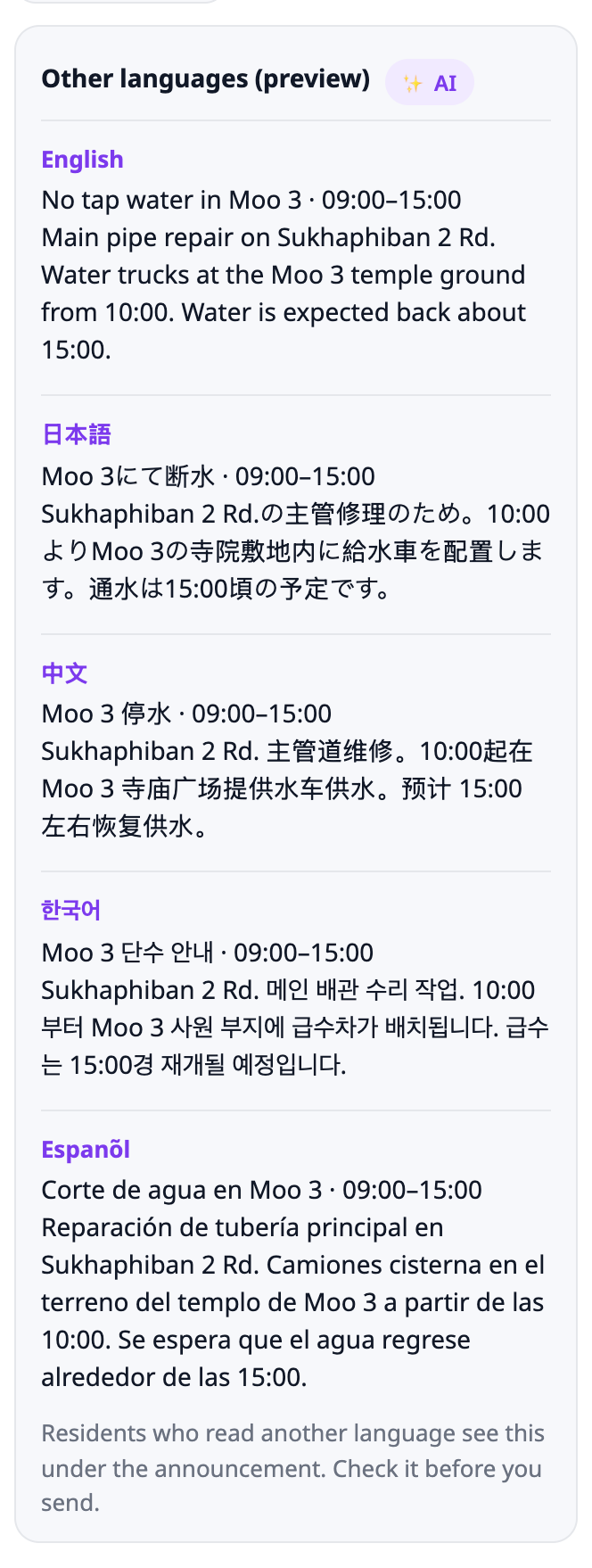
Press 🌐 Languages to see the English, Japanese, Chinese, Korean and Spanish versions before you send. Residents who read another language see the version under the announcement, behind 🌐 Translation. Check numbers and place names; the translation is made by AI.
The 07:00 draft and auto-publish #
Every day at the Daily draft time (default 07:00, Thai time) Plaazaa prepares one draft of the neighbourhood status per Space from the sources (one AI call). It does this only if there is no status for that day yet. The managers get one notification: today's status draft is ready — check and send.
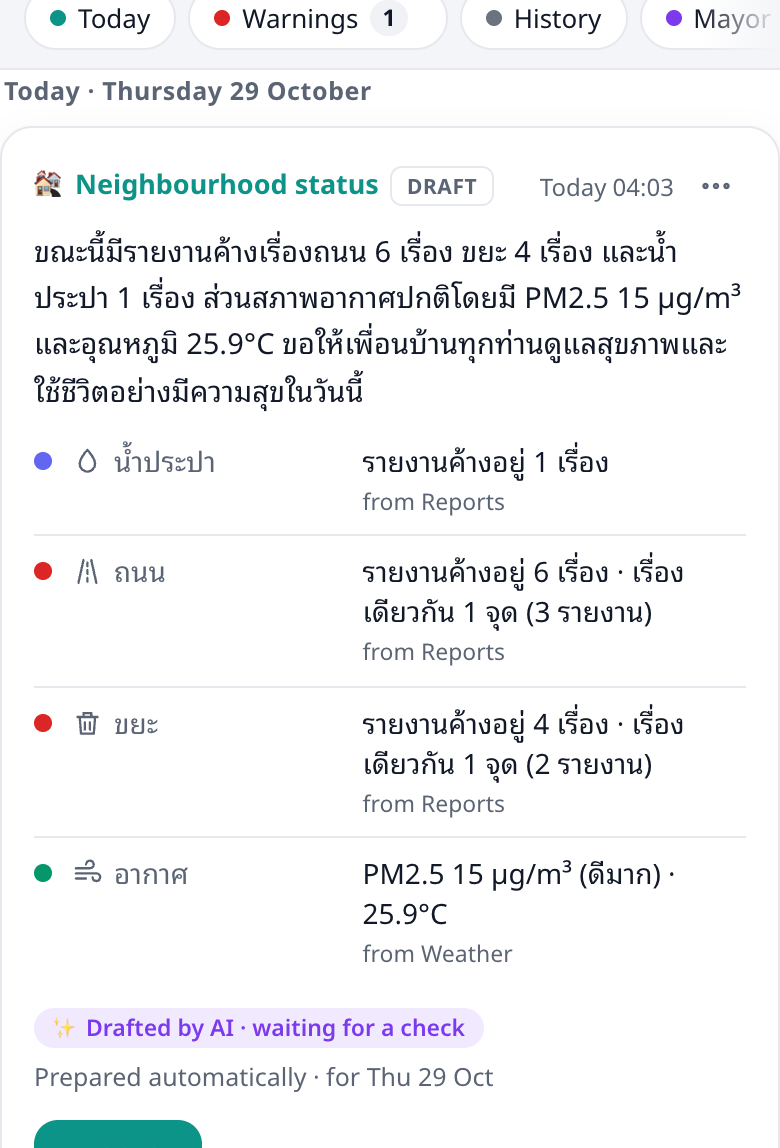
- Open Drafts. The card says Prepared automatically and, if something needs a look, N to check.
- ⋯ → Edit opens it in the composer; or press Publish on the card when it is right.
- Publish automatically is off by default. When you switch it on, the draft goes out by itself only if the check finds nothing to look at (no clash, no phone or ID number, no TMD warning). Otherwise it waits for you. The managers are told either way, and the public label says checked automatically when the text is AI-drafted.
Warnings and announcements #
Pick ⚠️ Warning or 📢 Announcement, write a title and a message, choose the level:
| Level | What happens |
|---|---|
| ℹ️ Info | Home only. No notification. |
| ⚠️ Important | Home + a notification to every member. |
| 🚨 Urgent | Red banner on top of the Space + a notification to every member. Only owner, admins and announce managers can send it. |
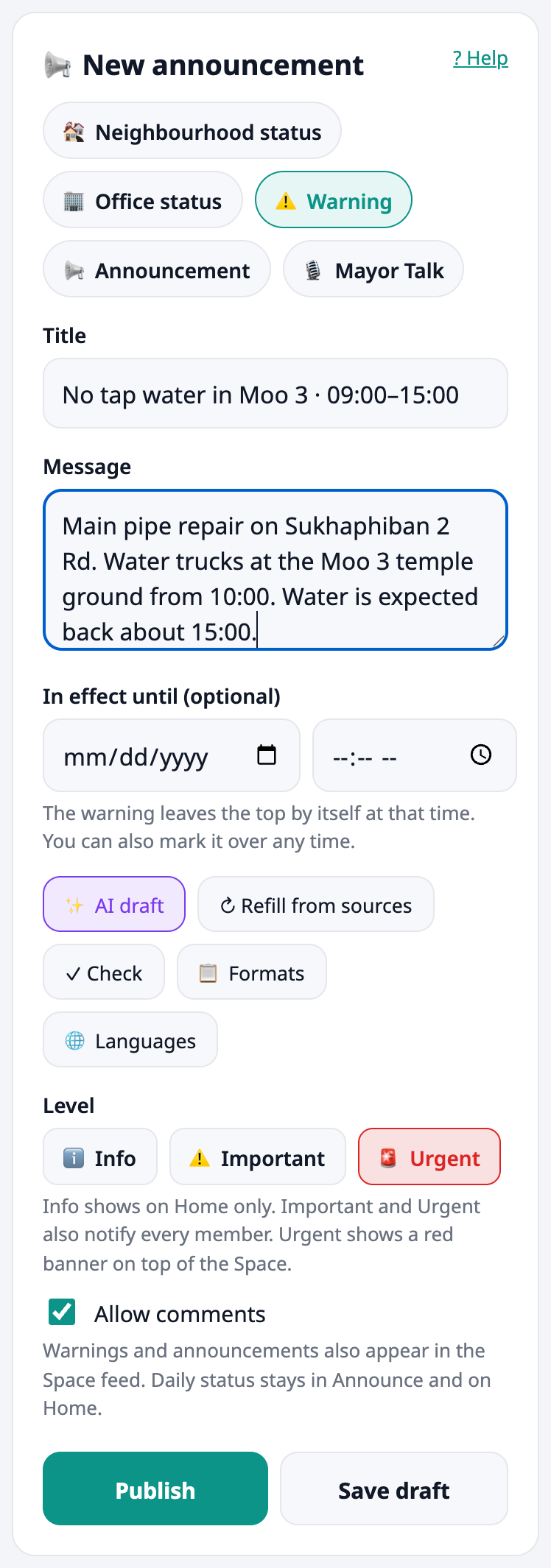
- A warning can have an end time ("In effect until"); it leaves the top by itself then.
- Warnings and announcements also post to the Space feed, where comments are on (switch Allow comments off per announcement).
- Everyone gets one notification per announcement, even if you edit it.
Seen, got it, and marking a warning over #
Under every published announcement you see Seen by N of M (residents whose page showed it, out of the Space's members) and, for warnings and announcements, N acknowledged (they pressed Got it). Only numbers are shown, no names, and staff views are not counted.
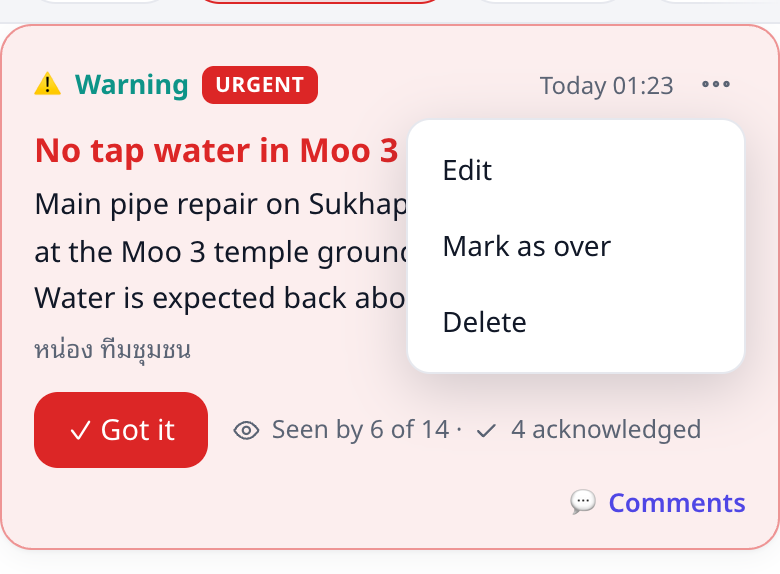
When the problem is solved, open ⋯ → Mark as over and confirm. The banner and the Home entry leave at once; the warning stays in Warnings and History with an Over badge, and its feed post stays. There is no undo: if the problem comes back, publish a new warning. A warning with an end time ends by itself.
Drafts from staff #
Staff who are not managers press Save draft. In the Drafts chip you see every draft and press Publish. Drafts are visible only to their author and to managers; nobody is notified until they are published.
🎙 Mayor Talk #
Write the message and press Send to the mayor for OK. The mayor is notified and presses Approve and send. Managers cannot approve it for the mayor. A weekly reminder asks the office for one when a week passes without a Mayor Talk. Full details in the Mayor guide.
✨ Mayor Talk in the mayor's voice #
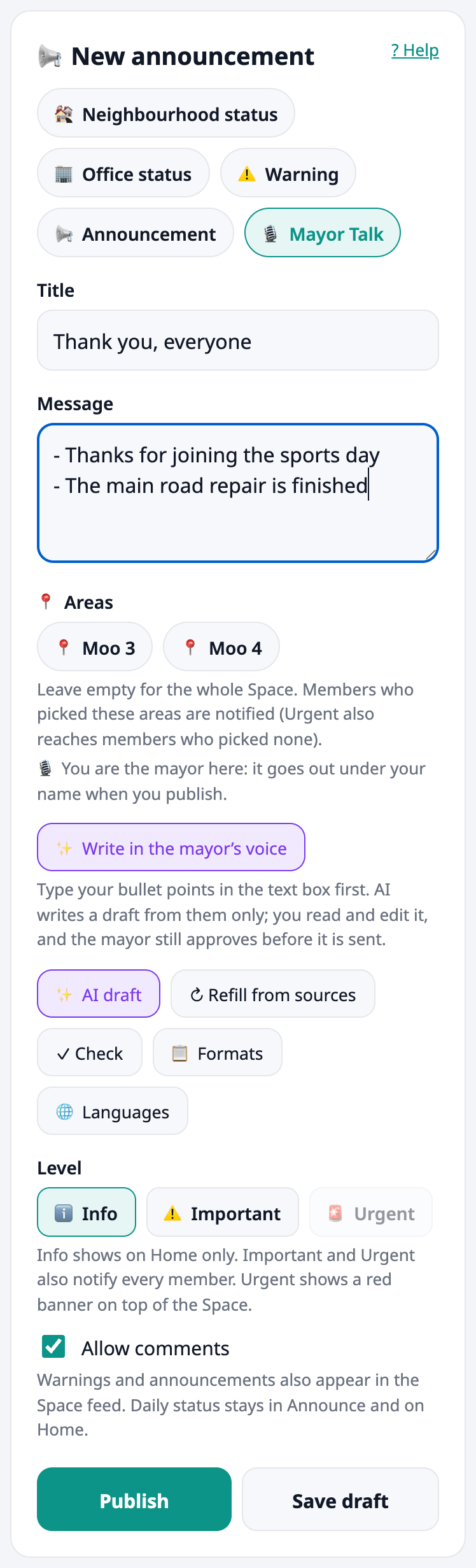
On a Mayor Talk, type the bullet points in the text box (one idea per line) and press ✨ Write in the mayor's voice. AI turns them into a warm, official message from the mayor, using only what your bullets say: it adds no number, date, name or promise, and a message with a number that is not in your bullets is thrown away. Read it, edit it, then save. The public ✨ Drafted by AI label stays on it. The AI does not change the rules: Mayor Talk still waits for the mayor's Approve and send, and nothing goes out in the mayor's name without it.
📍 Areas: one หมู่ or zone #
A warning, a general announcement or a Mayor Talk can be for one or more areas (หมู่, zone, road). The area list is in ⚙️ Announce settings → Areas: one per line, name | latitude, longitude | radius in metres (the point and radius are optional: with them, a report or event inside the radius picks the area by itself; the area name written in a place does too).

- In the composer tick the area chips. No chip = the whole Space.
- Everyone can read an area announcement; it shows an area chip. Members who picked that area see it first on Home and Today.
- Notifications go to members who picked one of the areas. An Urgent announcement also reaches members who picked no area. Info stays on Home.
- Renaming keeps the pick of residents; removing an area drops their pick.
- The daily status has no area.
📢 Announce about a report or an event #
- Report: on a same-problem group in Reports (and on a report card) staff see 📢 Announce about this. The composer opens with a warning, the area from the report location, a short text made only from the report facts, and a link back. Check, edit, publish. The people who reported it or pressed 🙋 me too are told once (not twice if the area notice already reached them).
- Fixed: when every report linked to the warning is marked fixed, a "fixed" follow-up draft appears (on the Home card and on the warning). It is never sent by itself: you check it and publish, and mark the warning over.
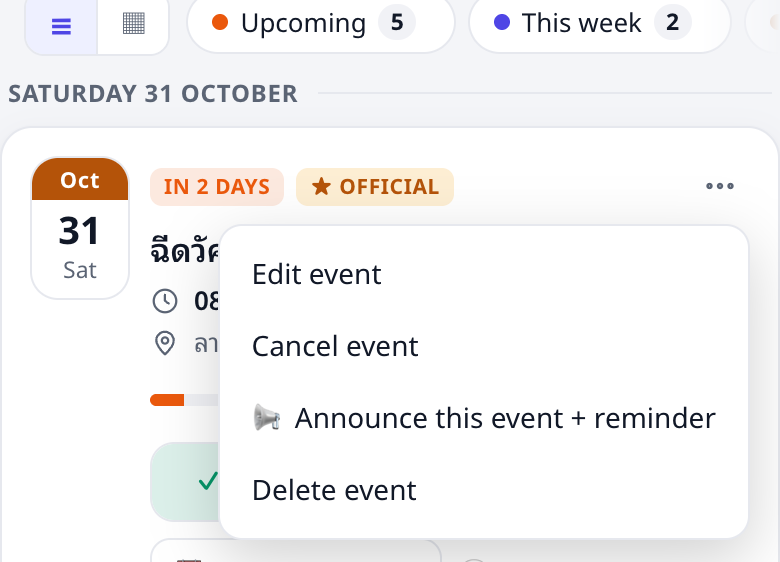
- Event: in an event's ⋯ menu press 📢 Announce this event + reminder. You get the announcement and, if you leave the box ticked, a reminder draft that shows on Home the day before. Nothing is sent until you publish.

💡 Suggestions the system prepares #
The system prepares drafts only (nobody is notified, nothing is published) and shows them as 💡 lines on the Home card for managers, and in Drafts:
| Suggestion | When |
|---|---|
| ⛈ Weather warning | a warning from the weather service, heavy rain (35 mm or more today) or PM2.5 in the orange band or worse. Old weather data (over 6 hours) is ignored. |
| 🧰 Reports | N or more open reports of the same problem (water, roads, rubbish, power) close together, fresh in the last 14 days. N is 3 by default; change it in the settings. Once per group of reports. |
| 🗓 Recap | every Monday (last week) and on the 1st (last month): announcements, warnings, fixed reports and events, from our own numbers. Nothing to report = no draft. |
| ⏰ Event reminder | the draft you asked for, when its day comes. |
Each draft comes with a suggested level, "what to do" lines written from fixed advice, and the public ✨ AI label when AI worded it (numbers are checked against the facts; AI down = plain text). Suggestions in the settings switches all of them on or off.
🗂 The archive and search engines #
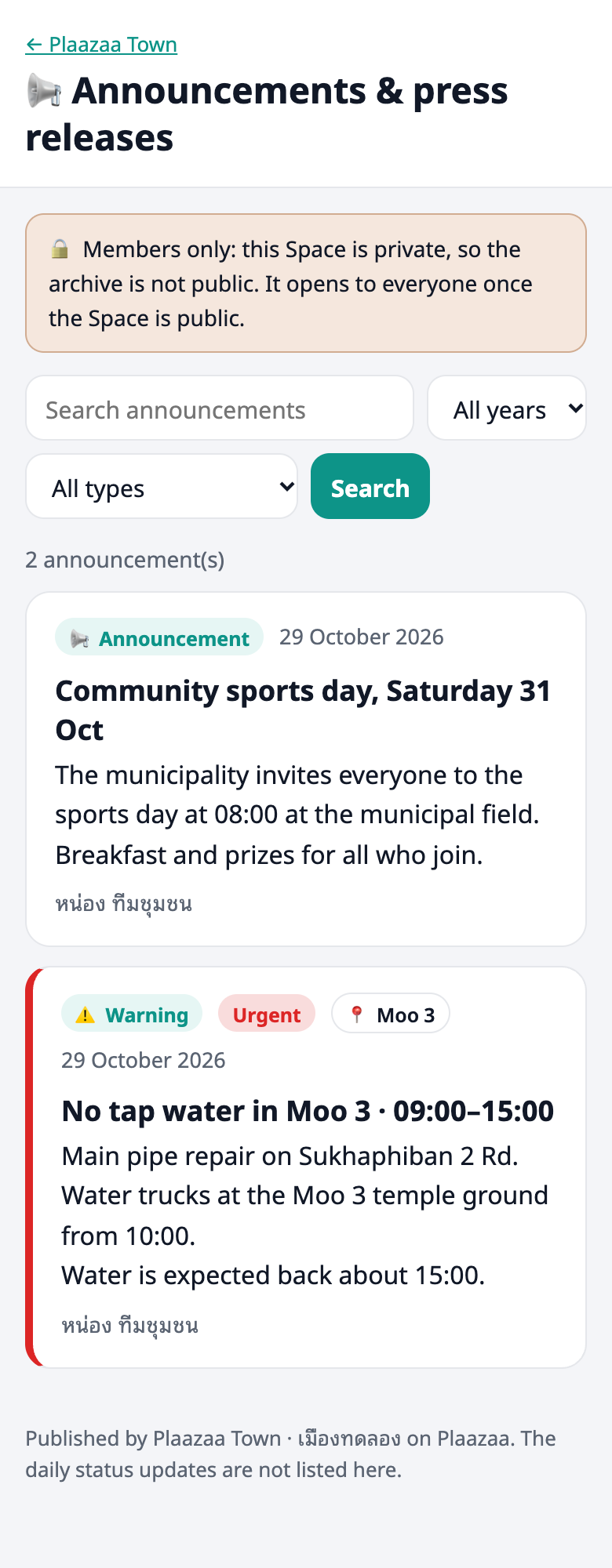
Every Space with Announce has an archive at /<space>/announce/archive (also in the tab's ⋯ menu): published warnings, general announcements, Mayor Talk and recaps, with search and year / type filters. The daily status is never listed. It is the office's announcements and press-release page.
- Public Space: anyone can open it.
- Private Space: only members can open it (a preview, marked as such); visitors get "not found".
- Search engines do not list it unless the Space is public and you switch on Allow search engines to list the archive in the settings (off by default).
Pinned or Announce? #
| Pinned (ปักหมุด) | Announce | |
|---|---|---|
| What it is | keeps an existing post at the top of Posts | a message the office writes for residents |
| Use it for | a post you want people to see for some days (up to 3 at a time, until a date) | daily status, warnings, office status, announcements, Mayor Talk |
| Notifications | none | Important / Urgent to every member; daily status to followers |
| Where | ⋯ menu on a post → Pin | Announce tab, Home card |
The Home card and the side card #
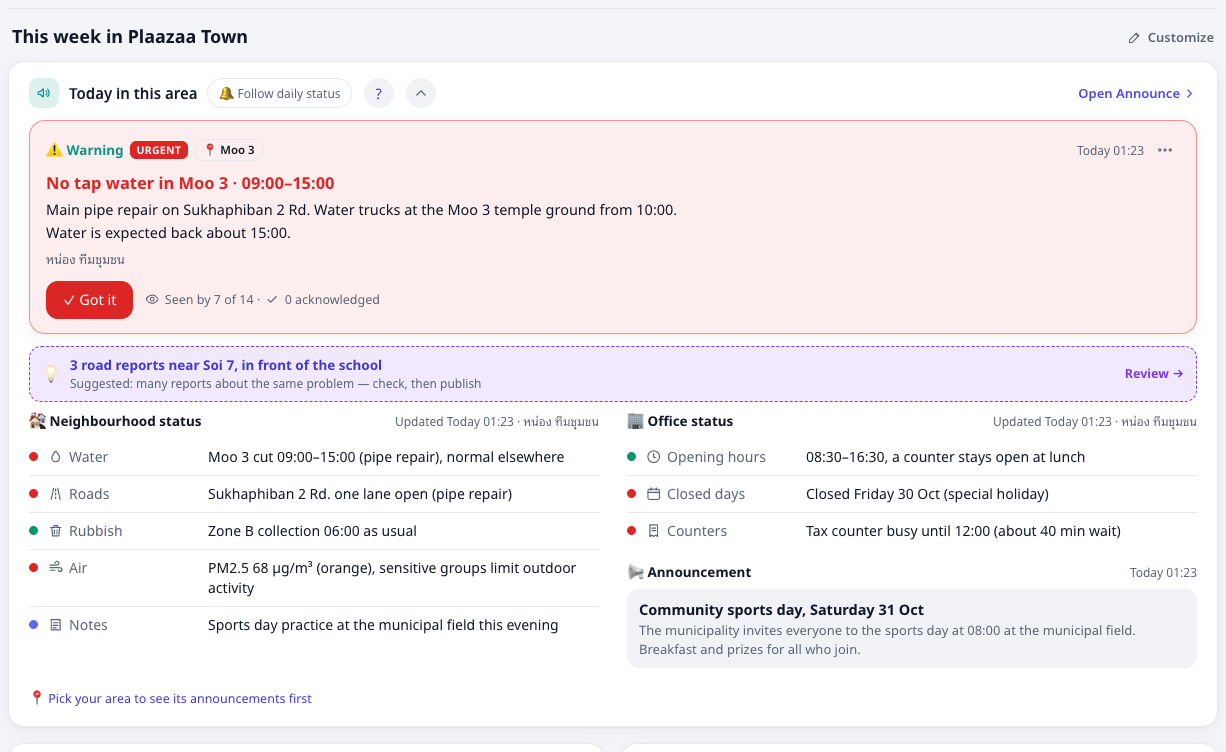
The Today in this area card is the first thing on Home: warning strip, neighbourhood status, office status, latest announcement, with a ? and a fold button. In the right column of the Space's other tabs, a small Announce card shows three numbers (warnings, statuses today, following) and the latest warning or announcement.
Announce settings #
In the Announce tab menu press ⚙️ Announce settings (owner and admins; announce managers too).
| Setting | What it does |
|---|---|
| Lines to fill | One line per row for the neighbourhood and the office status. Add, remove or rename (start with an emoji). Empty = our starter set. Old announcements keep their own wording. |
| Daily draft time | When the one daily draft is prepared (Thai time). |
| Publish automatically | Off by default. On = the draft goes out by itself only when nothing is flagged. |
| Mayor | The mayor's username (must be a member). Empty = the Space owner approves. |
| Weekly reminder | The Mayor Talk reminder to managers. |

Example: the morning routine, under a minute #
- At about 07:00 you get the notification today's status draft is ready.
- Open Announce → Drafts. The card says Prepared automatically.
- ⋯ → Edit. Look at the filled lines: air from Weather, water / roads / rubbish from Reports, notes from Events. Fix what you know better (for example the rubbish line).
- Press ✨ AI draft and wait a few seconds for the summary, then ✓ Check. All green? Good. A red ! (say, "phone number") means fix it first.
- Press Publish. The Home card now says updated today. Followers get a notification.
Example: an urgent water cut in Moo 3 #
- + New announcement → ⚠️ Warning. Title No tap water in Moo 3 · 09:00–15:00. Message: where the repair is, where the water trucks are, and when it should be back. Set In effect until 15:00.
- Choose 🚨 Urgent. Press ✓ Check: area and time are there, no phone number. Press Publish.
- Every member gets one notification. Residents see the red banner and a post appears in the feed, with comments on.
- Residents press ✓ Got it. In your Warnings chip the counts go up: Seen by 6 of 14 · 4 acknowledged.
- At 15:00 water is back. ⋯ → Mark as over. The banner goes away.
Example: a general announcement (sports day, closed for a holiday) #
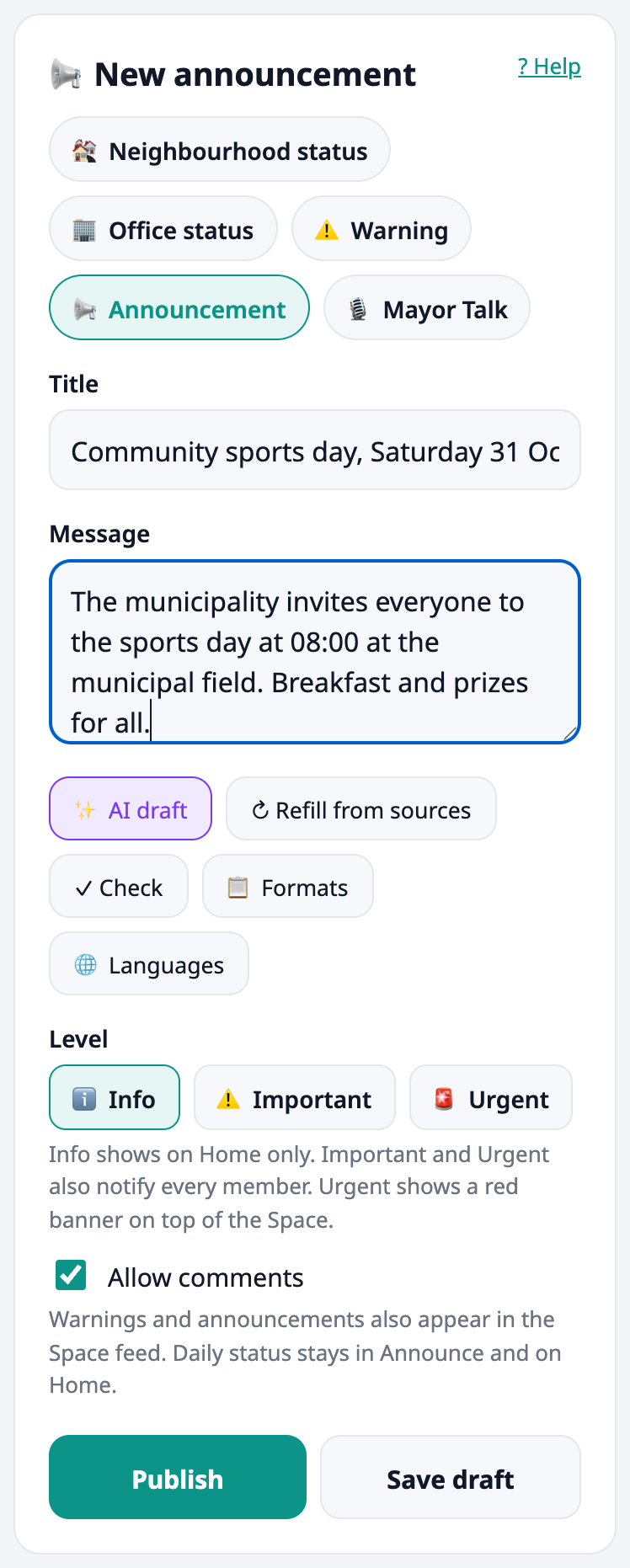
- + New announcement → 📢 Announcement. Title Community sports day, Saturday 31 Oct. Message: time, place, what to bring.
- Level Info (Home only) or Important (notifies every member). Keep Allow comments on.
- Publish. It appears as Latest announcement on Home and as a post in the feed. Residents comment there ("Can children join?"); answer them as the office.
- For "office closed on Friday": use 📢 Announcement with the date, or update the 🏢 Office status line Closed days. The status is for the day-to-day lines; the announcement is for a notice people may comment on.
Example: Mayor Talk #
A staff member drafts it, you check the wording with them, and the mayor approves. Steps in the Mayor guide.
Questions #
Why didn't residents get a notification for the daily status? Daily statuses notify only members who pressed 🔔 Follow daily status (opt-in). Only Important and Urgent notify everyone. Info never notifies.
Can I publish twice for the same day? Yes. The newer one replaces the older one; the older one is kept out of the lists.
Can I switch off comments? Yes, per announcement. The daily status never has comments.
Why is there no Publish button on a card? It is a draft you may not publish, or a Mayor Talk waiting for the mayor.
Does the AI send anything by itself? No. AI only writes text. A person presses Publish, unless you turned on Publish automatically.
What if AI is busy or at its limit? You get plain text built from your rows and can still send.
Can I limit an announcement to one area? Not yet. Every announcement goes to the whole Space.
Where is the log of who sent what? Every card shows the sender (or Prepared automatically) and the time.
Something is not working #
| What you see | What to do |
|---|---|
| "Tick or fill at least one line." | A daily status needs at least one line filled. |
| "Write a title (at least 3 letters)." / "Write the message." | Fill the title and the message. |
| "That day is not allowed (up to 8 days back, 1 day ahead)." | Pick a nearer day. |
| "The end time must be in the future." | Set a later "In effect until". |
| "This kind cannot be Urgent." | Daily and office status cannot be Urgent. Use a Warning. |
| "AI is not available for you here." / "You have reached today's AI limit. Plain text is used instead." | Write the lines yourself, or try again tomorrow. Publishing is not blocked. |
| "The AI text had a number that is not in your rows" | The AI text was dropped to stay truthful. Plain text is used; edit it. |
| "Nothing to fill in from Weather, Reports, Events or Space info right now." | The sources have no data. Tick the lines yourself. |
| "That user is not a member of this Space." (settings, Mayor) | The mayor must join the Space first. |
| No 07:00 draft | There was already a status for today, or no source had data. Create it yourself. |