🏪 Shop owners
A Business Space — set up your shop's page
What it is #
A Business Space is a Space for a shop, café, salon or clinic. Its Home is made for customers: whether you are open now, buttons to LINE, Call and get Directions, your address with a small map, your opening hours, then your Events, Polls and Announce cards. A link at the bottom says which town you belong to ("Part of Plaazaa Town").

On a phone the same block is one column, with the three buttons side by side:
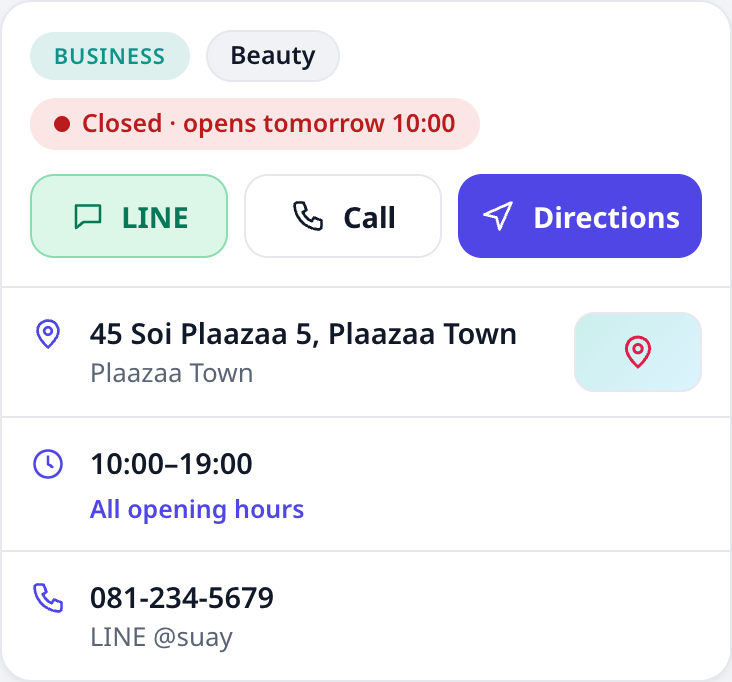
A normal (city) Space does not change. Plaazaa staff set a Space to Business and the town it belongs to — you cannot switch the type yourself. Ask Plaazaa to make your Space a Business Space.
Fill in your business info #
Who: the Space owner and admins. Open the Space, press ⋯ Manage → Business info.
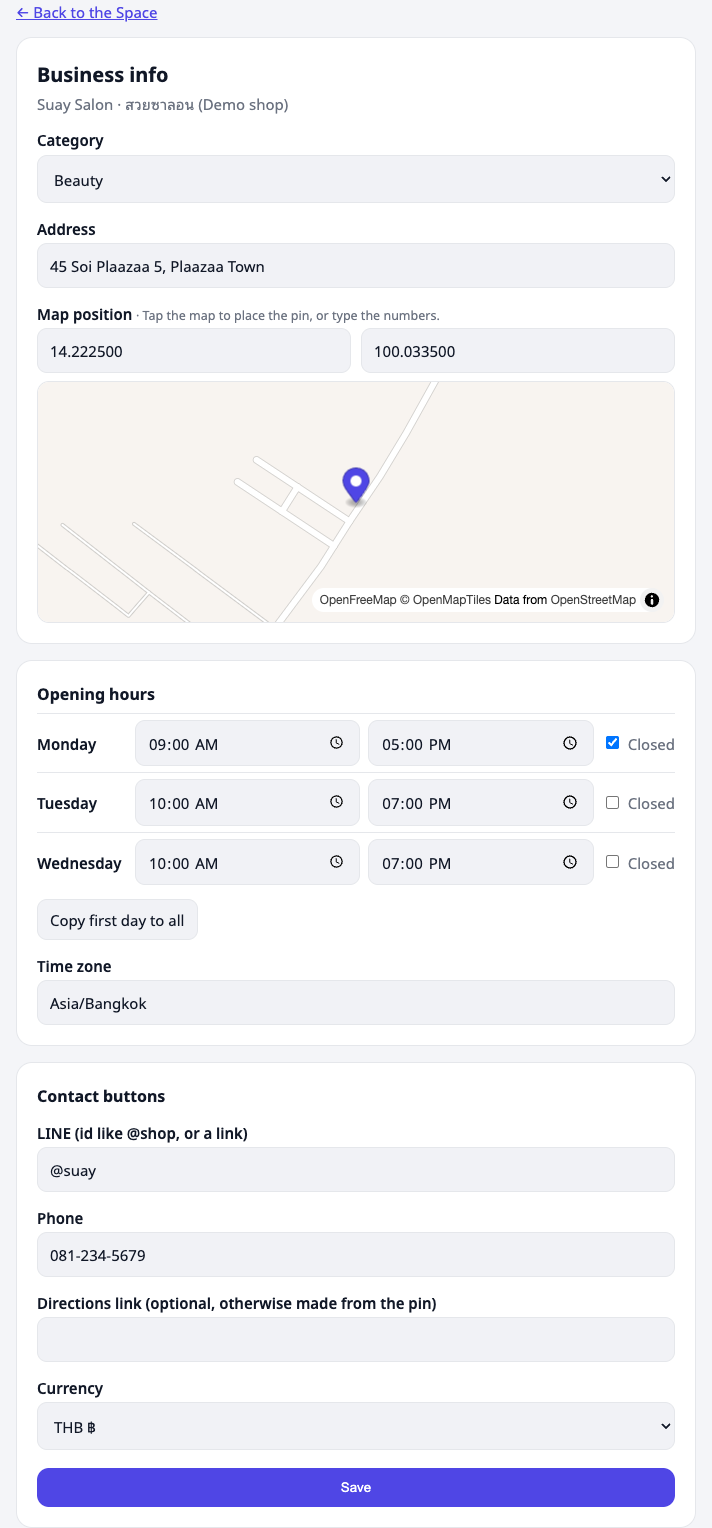
| Field | What it does |
|---|---|
| Category | Café, Food, Beauty, Grocery, Wellness or Fitness. Shown as a chip. |
| Address | Shown in the Home block. |
| Map position | Tap the map to drop the pin (drag it to adjust), or type latitude and longitude. Customers tap the small map chip to see the map. |
| Opening hours | One opening and closing time per day. Tick Closed for a day off. Copy first day to all fills every day. |
| Time zone | Leave it as Asia/Bangkok in Thailand. "Open now" is worked out in this zone. |
| LINE | Your LINE id (like @myshop) or a link. Makes the green LINE button. |
| Phone | Makes the Call button (tap to call on a phone). |
| Directions link | Optional. If empty, Directions opens a map route to your pin. |
Press Save. The Home block updates at once.
💡 A button only appears when its field is filled in. No phone number, no Call button.
Open now #
The chip shows Open now · closes 18:00, or Closed · opens tomorrow 10:00. It follows your opening hours automatically — no need to change anything on a holiday morning, but remember to untick the days you really close.
Edit the cards below #
⋯ Manage → Edit Home works as in any Space: switch Events, Polls and Announce on or off, move them, pick who sees them. City cards (Reports, Notices, Popular, weather) are not offered on a Business Space.
⋯ Manage → Tools shows tools that are coming soon (Book, Market) and the switch to show them on your Home.
Perks & card #
If the shop uses Plaazaa Loyalty, its Home shows a Perks & card block above the menu:
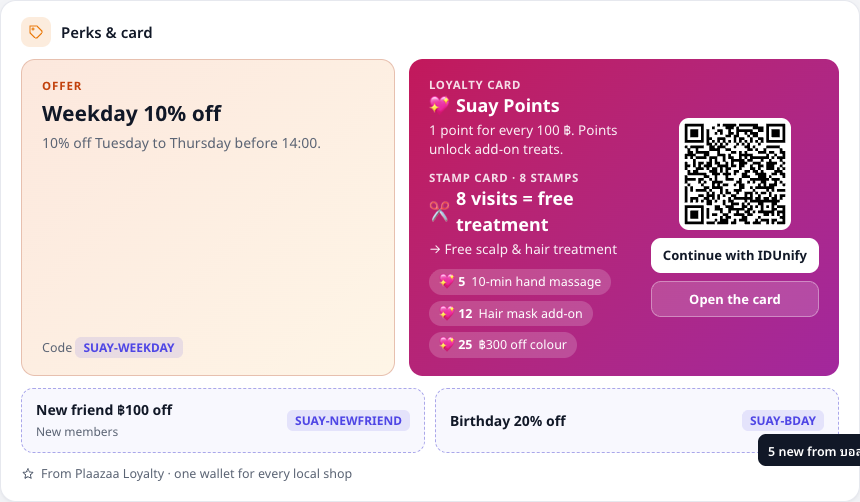
- Offer — the shop's current public offer (for example "Happy Hour 20% off") and its code.
- Loyalty card — what the card earns (for example 1 Star per ฿10), the stamp card if there is one, and the first rewards (what the Stars buy).
- Join — a QR code and Continue with IDUnify open the card page so a customer can join free. Customers who are not signed in see exactly the same; nothing about a person is shown here.
- Vouchers — other public vouchers as small tiles (new-member vouchers are marked).
The block is read only: the shop changes offers, rewards and cards in Plaazaa Loyalty, and this block follows within minutes. It is refreshed every 7 minutes; if Loyalty cannot be reached the last good data stays on screen with Last updated … ago once it is older than 20 minutes — it never turns into an empty box. A shop that is not linked, or has nothing public, simply shows no block.
In the town's Local shops list, each shop tile can show its current offer as a small orange badge.
🔒 Linking a shop to Loyalty is done by Plaazaa staff (Business info → Plaazaa staff → Loyalty partner id, card ids). The access key stays on the server and is never shown on the page.
Menu / Services list #
Add what you sell so customers see it on your Home. The block is called Menu (café, food), Services (beauty, wellness, fitness) or Products (grocery), from your category.
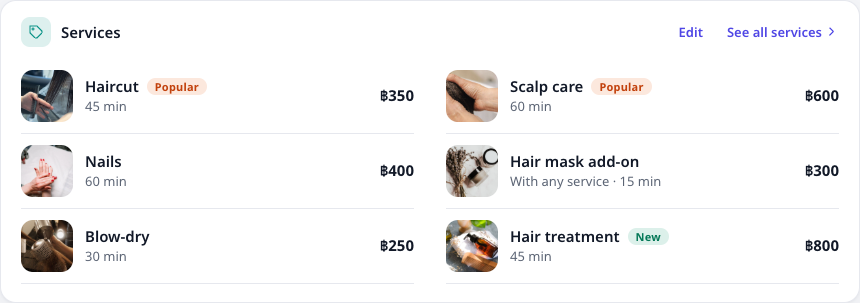
Open ⋯ Manage → Menu (or Services). The owner and admins can:
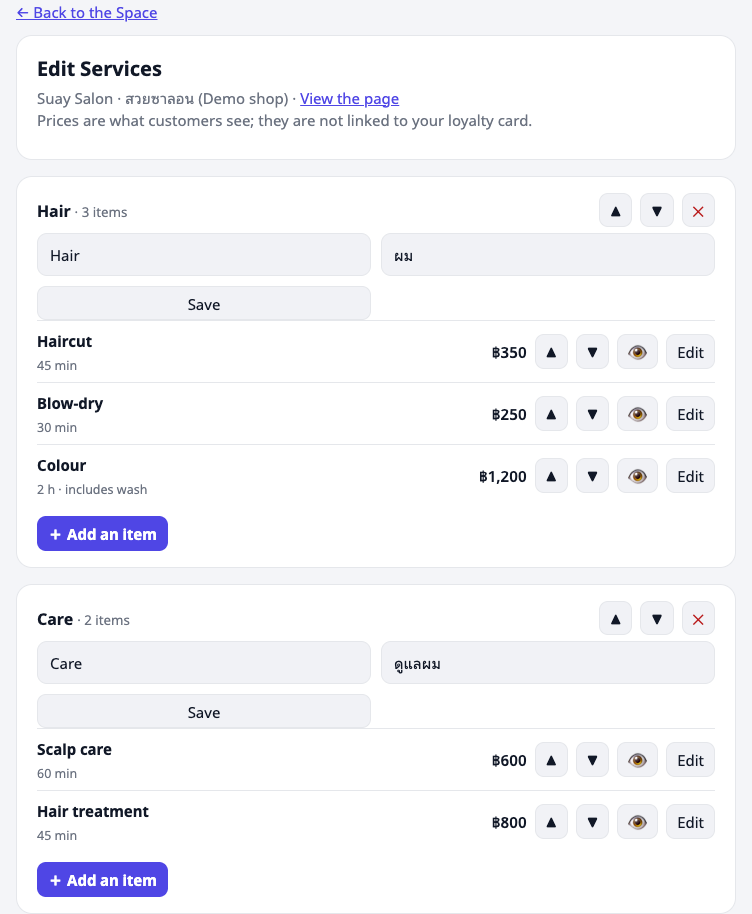
- Add a section (for example Coffee, Bakery) — name in English and Thai. Use ▲ ▼ to order sections; ✕ deletes a section and its items.
- Add an item inside a section: name (English / Thai), a short description, price, an optional photo, a tag (Popular or New) and Available.
- Price is in your shop currency (set it on the Business info page; Thai baht shows as ฿65). Leave it empty to show Ask us (for example "by quote").
- Photo: a picture of the food, drink or finished work. Do not show customers' faces.
- 👁 hides an item without deleting it (sold out). ▲ ▼ move it up or down in its section.
On the Home the block shows up to 6 items — items tagged Popular first, then your order — and See full menu opens the whole list. A shop that has not added anything yet shows a prompt to the owner only; customers see nothing.
💡 These prices are for customers to read. They are not connected to your loyalty card or what you charge at the till.
💡 Menu / Services works in every Business Space. Local shops works for every town (city-type Space): once a shop is approved, it appears in that town's card and tab — see Local shops.
Name in each language #
Your Space can show a different name to visitors in each language (English, Thai, Japanese, Chinese, Korean, Spanish). For example Baan Doi Café (Demo shop) for English visitors and บ้านดอยคาเฟ่ (ร้านตัวอย่าง) for Thai visitors.
- Open the Space and press ⋯ Manage → Views (any Space) or ⋯ Manage → Business info (Business Space).
- Scroll to Name in each language and fill in the languages you want (up to 80 characters each).
- Press Save names.
Visitors see the name for the language of the page they are on: the plain link is English, a link with ?lang=thai is Thai, and signed-in members see their account language. A language you leave empty shows the main name (the one set when the Space was created). The name appears in the Space header, Space lists, Local shops, the browser tab, link previews and search engines. Only the owner and admins can change names.
Coming next #
Showing a member's own Stars, stamps and vouchers in the block (after signing in with IDUnify) is planned. Nothing to do now.